


Thinking about moving on from Shopify? Whether you’re switching platforms, taking a break, or closing your online store entirely, knowing how to cancel Shopify subscription properly is essential to avoid surprise charges and ensure a smooth transition. This in-depth guide walks you through every step to cancel your Shopify plan the right way, plus answers to common questions and pro tips.
Why People Cancel Shopify Subscriptions
Entrepreneurs and businesses may decide to cancel Shopify for many reasons. You might be rebranding, downsizing, or choosing a Shopify alternative due to costs or platform preferences. Some users feel they’ve outgrown Shopify or are switching to platforms like Shopify or Squarespace, depending on their evolving needs.
In other cases, users find themselves stuck with an expired domain Shopify no longer supports, or simply want to shut down a failed venture. Regardless of the reason, understanding how to cancel Shopify subscription is crucial. Learn more here.
Things to Consider Before Cancelling
Before diving into cancellation, keep these key factors in mind:
1. Backup Your Store Data
Export your orders, customer data, product details, and theme files. Once your store is closed, this information may be unrecoverable.
2. Settle Outstanding Bills
Ensure all pending charges are cleared. Shopify won’t let you cancel with a balance due.
3. Apps and Third-party Charges
Remember to cancel any paid apps or external services tied to your store.
4. Active Subscriptions & Domains
If you purchased a domain via Shopify, you may need to transfer it. Also, cancel any recurring charges.
5. Timing
Shopify bills in advance. Cancelling mid-billing cycle won’t provide a refund unless stated otherwise.
Understanding how to cancel Shopify subscription gives you control over these details so you can exit cleanly.
Step-by-Step: How to Cancel Shopify Subscription
Follow these steps to cancel your Shopify account or pause your store:
Step 1: Log Into Shopify Admin
Navigate to your Shopify admin panel using your login credentials.
Step 2: Go to Settings > Plan
From your dashboard, click on Settings in the lower-left corner, then go to Plan.
Step 3: Choose to Pause or Cancel Store
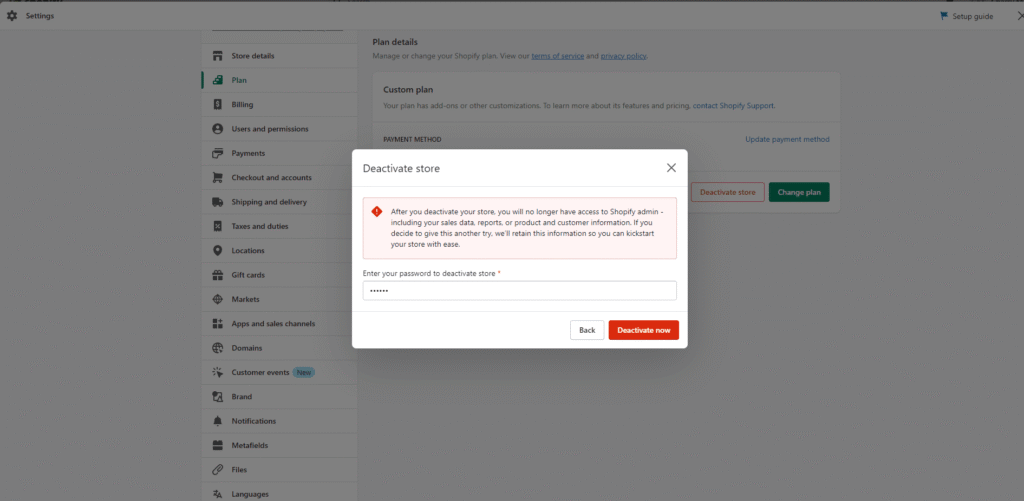
You’ll see options like “Pause and Build” or “Cancel Subscription.” Click on “Deactivate Store” to begin cancellation.
Step 4: Confirm Cancellation Reason
Shopify will ask why you’re leaving. Provide your reason and continue.
Step 5: Enter Password & Confirm
Enter your account password to verify your identity and click “Deactivate Now.”
And that’s it. You now know how to cancel Shopify subscription fully.
What Happens After Cancellation?
Once you cancel:
- Your store becomes inaccessible to the public
- You won’t be billed in future cycles
- Data may be retained for 2 years in case you return
- Emails and admin dashboard will stop working
Cancelling Shopify doesn’t mean your brand has to end—just that you’re pivoting your tools.
Can You Delete Your Shopify Account Entirely?
Many users confuse canceling a subscription with deleting their entire presence. If you’re wondering how to delete Shopify account, the process is slightly different:
- Cancel all subscriptions
- Remove payment methods
- Delete domains or transfer them
- Contact support to request full deletion if necessary
This is especially useful if you want to close all activity associated with Shopify. Read this step-by-step guide for more detailed instructions.
How to Delete Shopify Store vs. Cancel Subscription
To clarify:
- Cancel subscription: Pauses your billing and closes the store interface.
- Delete Shopify store: Removes all data from Shopify permanently.
If you’re still unsure how to delete Shopify store, revisit the admin dashboard and follow similar steps as above, but with the intent to wipe all content permanently.
Additional Actions Before Cancelling
Remove Branding
If you plan to migrate your site or platform, you may want to learn how to remove powered by Shopify from your footer before exporting. This keeps your exported design clean.
Explore Alternatives
Don’t forget to look into Shopify alternative options before making the jump. Platforms like WooCommerce, BigCommerce, Wix, and Squarespace all offer viable solutions for different needs.
Pause Instead of Canceling?
You may not need to cancel entirely. Shopify allows you to pause your store temporarily for a reduced rate. This can be a smart option for seasonal businesses.
How to Reopen Your Store Later
Did you cancel too early or change your mind? No worries. Shopify retains your store data for up to 2 years. Just log in and choose a plan to reactivate.
Understanding how to cancel Shopify subscription doesn’t mean it’s a permanent decision. If you need help making the right move, feel free to contact us.
